Introduction
Your agent's knowledge base is its source of truth.
Without one, your agent answers questions from training data alone—which means generic answers, outdated info, and frustrated customers. With a good knowledge base, your agent retrieves your exact policies, product details, and procedures in real-time.
This guide explains how that actually works. No ML background required.
The Real Problem Your Knowledge Base Solves
Scenario: A customer asks your support agent, "What's your refund policy?"
Your agent has two options:
Option 1 (no knowledge base): Agent searches its training data → finds generic information about refunds from the internet → replies: "Most companies offer 30-day refunds for unopened items."
Problem: That's not YOUR policy. You offer 60 days. Customer is now misinformed.
Option 2 (with knowledge base): Agent searches YOUR documents → finds your refund policy PDF → retrieves the exact text: "60 days, unopened only, original packaging required" → replies with your actual policy.
Result: Customer gets accurate, company-specific information instantly.
The knowledge base solves this by making your agent smart about YOUR business, not the internet's opinion of business in general.
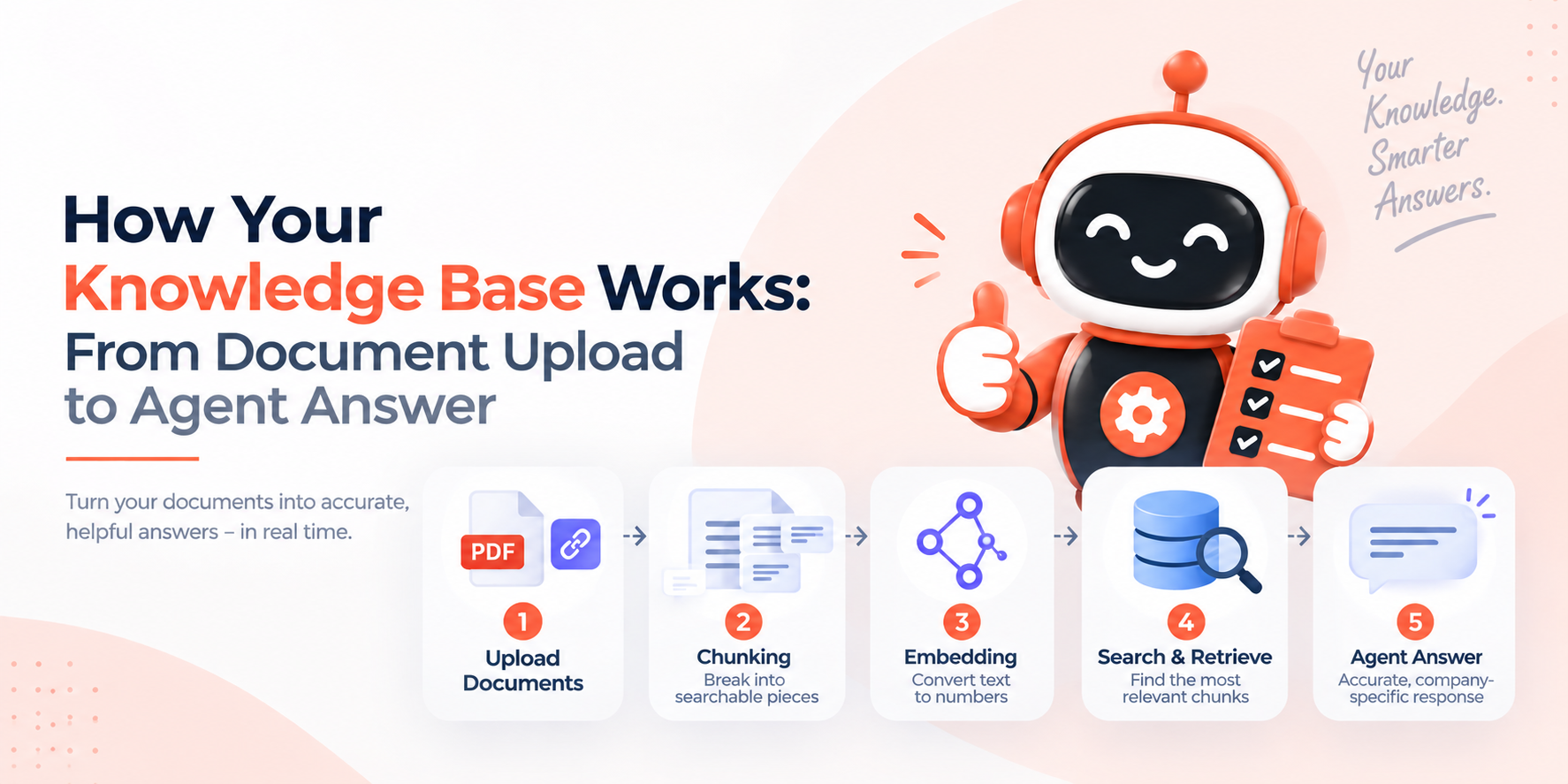
How It Works: The RAG Pipeline
RAG stands for Retrieval-Augmented Generation. Here's what it does:
When a customer asks a question:
Retrieval — Find the right documents from your knowledge base
Augmentation — Add those documents to the LLM prompt
Generation — The LLM answers using YOUR information, not generic training data
Let me walk through the 5 steps your knowledge base performs every single time your agent answers a question.
Step 1: Upload Your Documents
When you upload a PDF, URL, or plain text, here's what happens:
What you do:
Go to
/dashboard/agents/:agentId/knowledgeClick "Add Document"
Choose: PDF file, URL, or paste text
Submit
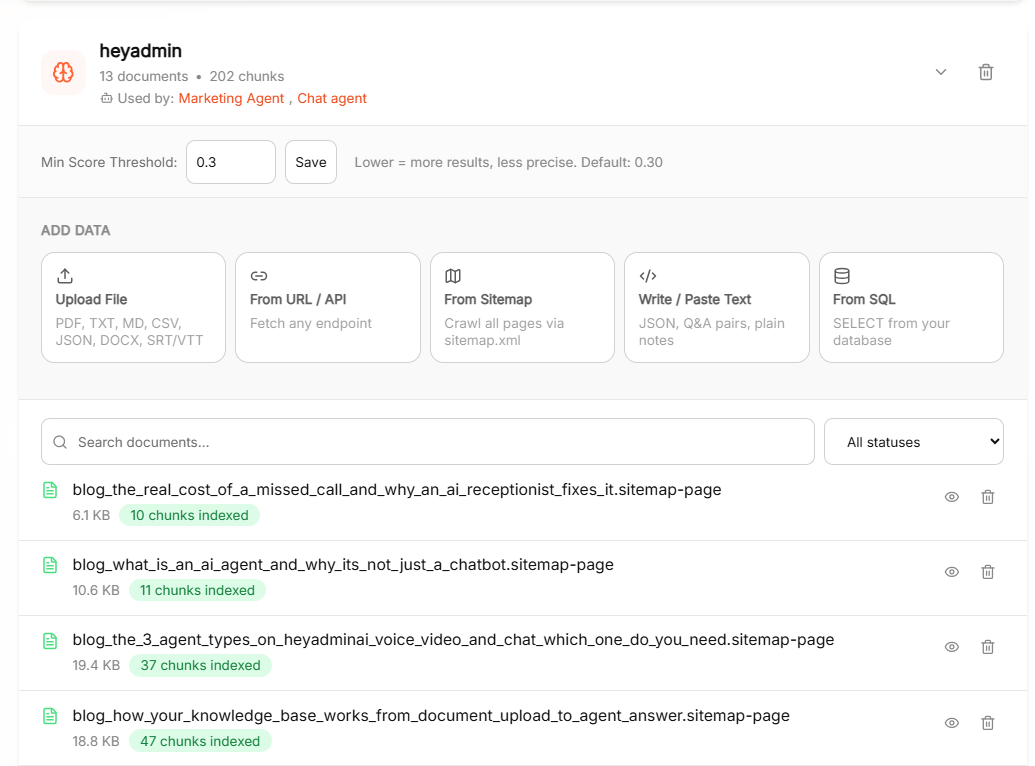
What the system does:
Storage — Document saved to disk (or S3, if configured for your company)
Format detection — System checks if it's PDF, URL, or text
Content extraction — Text pulled from PDF or fetched from URL
Metadata tagged — Document title, upload date, source URL stored for later reference
The document is now indexed but not yet searchable. That happens in the next step.
Example workflow:
You → Dashboard: "Upload FAQ.pdf"
       ↓
   System: Store file + extract text
       ↓
   Database: Save document record (id, title, source, uploadedAt)
       ↓
   Ready for chunking (next step)
Step 2: Chunking — Breaking Documents Into Searchable Pieces
Your 50-page manual can't be searched as a whole. The system breaks it into smaller pieces called chunks.
Why chunking matters
If the agent tries to search a 50-page PDF as one blob:
Vector search would be too slow
Too much context for the LLM to process
Relevant info would get lost in noise
Chunking solves this. Instead of one giant chunk, you get:
200–500 small chunks (typically 300–500 tokens each)
Each chunk is searchable independently
Relevant chunks retrieved quickly
How it works
The system reads your document and splits it logically:
Original PDF: "Refund Policy" (50 pages)
       ↓
   Chunked into:
   - Chunk 1: "Basic refund eligibility (unopened items, 60 days)"
   - Chunk 2: "Return shipping process (free label, track here)"
   - Chunk 3: "Special cases (damaged in transit, defective items)"
   - Chunk 4: "Restocking fees (10% for opened items)"
   - ... (50+ total chunks)
Each chunk is roughly 300–500 words. This size is intentional:
Too small (50 words) → loses context ("What's the refund policy?" → chunk is just "60 days" with no explanation)
Too large (5,000 words) → slower search + LLM struggles to focus
Just right (300–500 words) → complete thought + fast retrieval
Step 3: Embedding — Converting Text to Numbers
Here's where the real magic happens.
Embedding models convert text into numbers the computer can search. These numbers represent meaning.
How embeddings work
Think of it like this: a powerful AI reads your chunk and creates a "fingerprint" of its meaning.
Chunk text: "We offer 60-day refunds for unopened items.
            Original packaging required. Free return shipping."

                        ↓ [Embedding model]

Vector (meaning): [0.23, -0.41, 0.87, 0.12, -0.65, ...]
                  (list of 768–1536 numbers)
Those numbers capture the semantic meaning of your chunk. Chunks with similar meaning produce similar number vectors.
Why this matters
When a customer asks, "How long do I have to return something?"
The system:
Converts the question to a vector (same embedding model)
Finds vectors most similar to it
Returns the highest-matching chunks (like "60-day refunds...")
The result: It's not matching keywords ("return" in query + "return" in chunk). It's matching meaning (the customer is asking about timing, and the chunk is about timing).
Which embedding model?
heyadmin.ai uses multilingual-e5-large by default. This model:
Handles 100+ languages
Works for technical + conversational text
Produces accurate matches across industries
You don't need to pick this yourself—it's configured by default.
Step 4: Indexing — Storing Vectors in the Search Engine
Once your chunks are converted to vectors, they're stored in Qdrant, a specialized search database.
What is Qdrant?
Qdrant is a vector database. Think of it as:
Regular database: Stores text, numbers, dates
Vector database: Stores embeddings (meaning vectors) + original text + metadata
How indexing works
For each chunk:
Chunk ID: doc_123_chunk_5
Title: "Refund Policy - Return Shipping"
Text: "We offer free return shipping..."
Vector: [0.23, -0.41, 0.87, 0.12, -0.65, ...]
Source: "FAQ.pdf"
UploadedAt: 2026-08-27
    ↓
[Stored in Qdrant]
    ↓
Ready for search
This index allows fast vector search. When a customer asks a question:
Question converted to a vector (in milliseconds)
Qdrant searches for similar vectors (very fast)
Returns top-5 most similar chunks
Speed benchmark:
Search 1,000 documents: ~100ms
Search 100,000 documents: ~200ms
All within the agent's response time.
Step 5: Retrieval — Finding the Right Answer at Query Time
When a customer asks a question, here's what happens in real-time:
The retrieval flow
Customer: "Do you charge restocking fees?"
          ↓
   1. Convert to vector
          ↓
   2. Search Qdrant for similar vectors
          ↓
   3. Return top 3–5 chunks ranked by similarity
          ↓
   4. Pass chunks to LLM with the original question
          ↓
   5. LLM generates answer using your information
          ↓
   6. Send reply to customer
The retrieval settings you control
In your agent's settings, you can tune:
Setting | Default | What it does |
|---|---|---|
Retrieval Count | 5 chunks | How many chunks to retrieve per query |
Similarity Threshold | 0.60 | Minimum match score (0–1). Higher = stricter |
Chunk Size | 500 tokens | Size of each chunk during indexing |
Practical tuning:
Threshold too high (0.90) → Agent says "I don't know" too often
Threshold too low (0.40) → Agent retrieves wrong documents
Sweet spot (0.60–0.70) → Balances accuracy + coverage
You don't need to change these defaults for most use cases. They're already calibrated for business documents.
Step 6: Answer Generation — LLM Uses Your Information
This is the final step. Your LLM now has:
The customer's original question
The top 3–5 most relevant chunks from your KB
Your agent's system prompt (personality + role)
The LLM generates an answer using only your information.
Example generation
System Prompt: "You are a support agent for Acme Corp.
               Be friendly but professional."

Customer Question: "Do you charge restocking fees?"

Retrieved Chunks:
  [1] "We offer 60-day refunds for unopened items..."
  [2] "Restocking fees: 10% applies to opened/used items..."
  [3] "Return shipping: Free label provided..."

LLM thinks: "The customer asks about fees.
           Chunk [2] is most relevant.
           System prompt says be friendly."

Generated Answer: "Great question! We charge a 10% restocking
                  fee for items that have been opened or used,
                  but unopened items get a full refund.
                  Plus, we cover return shipping.
                  Want the link to our return form?"
Why this works: The LLM stays grounded in your actual policies. It can't invent a refund policy—it can only answer from what's in your knowledge base.
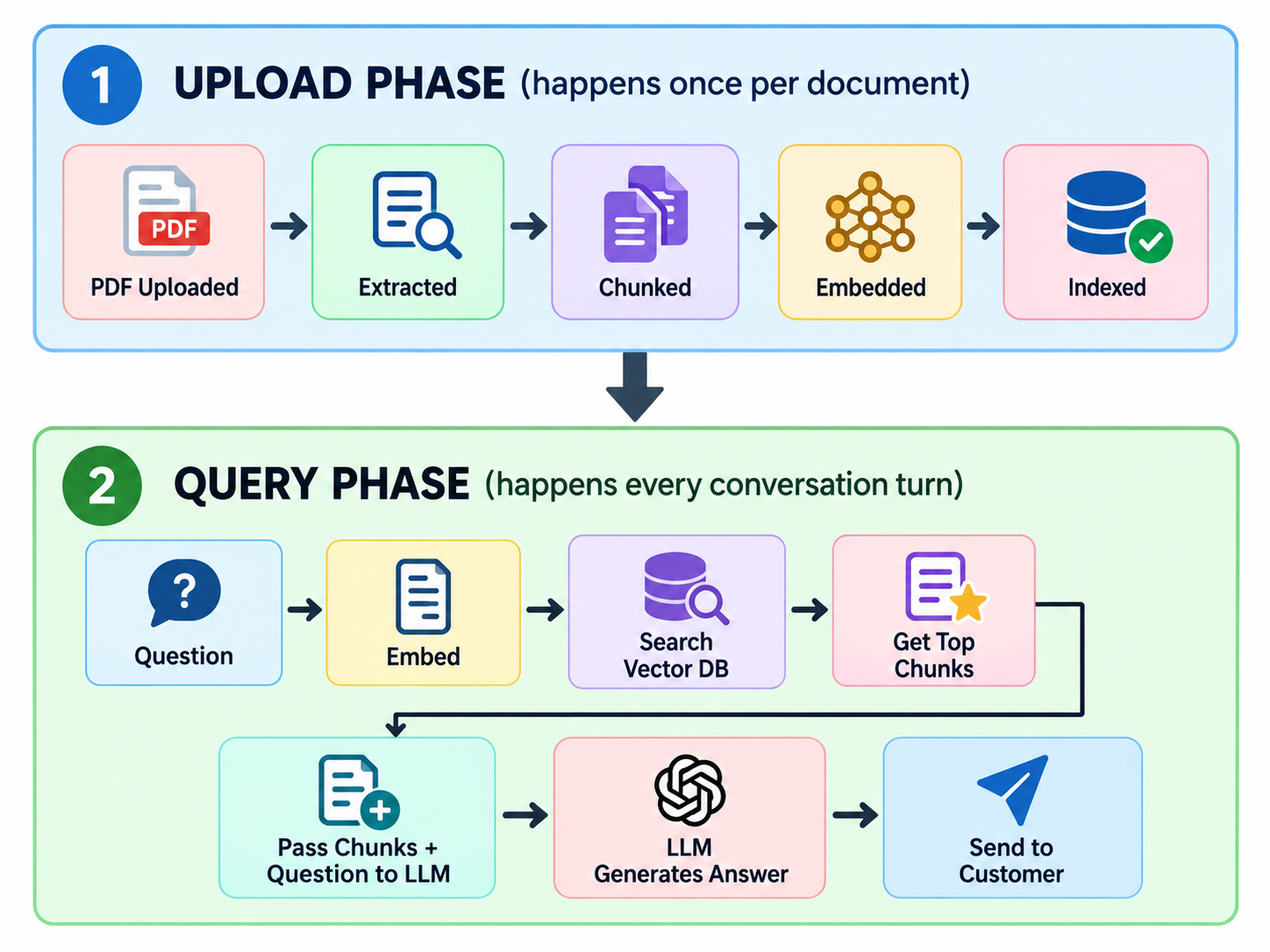
Visualization: The Complete RAG Flow
Here's the full journey from upload to answer:
Why Your Agent Sometimes Says "I Don't Know"
When your agent replies, "I don't have information about that," here's usually why:
Scenario 1: Document not uploaded
Customer asks about warranty, but you never uploaded your warranty policy. Agent can't answer.
Fix: Upload the document to /dashboard/agents/:agentId/knowledge.
Scenario 2: Question doesn't match any chunks
Customer asks, "What's your refund policy?" but your document uses the phrase "money-back guarantee" instead.
The question vector and the chunk vector don't match well enough (similarity below 0.60 threshold).
Fix: Either:
Lower the similarity threshold in agent settings
Upload a chunk with "refund" in the title for better matching
Add an FAQ entry with "refund" explicitly
Scenario 3: Scope topics block the answer
You've set scope topics to ["Billing", "Refunds"] but the customer asks about shipping.
Agent is configured to decline out-of-scope questions.
Fix: Either expand scope topics or update the agent's system prompt to allow shipping questions.
Best Practices: Building a Knowledge Base That Works
1. Document structure matters
Good structure:
FAQ.pdf
├─ Refund Policy
│  ├─ Basic eligibility
│  ├─ Return shipping
│  ├─ Restocking fees
│  └─ Special cases
├─ Warranty
│  ├─ What's covered
│  └─ Claims process
Why: Clear headings help the chunker understand sections. Each section becomes a natural chunk.
Bad structure:
One giant 200-page "Company Manual" with everything mixed together
Why: Chunker can't find semantic boundaries. Your agent retrieves too much context per question.
2. Keep documents focused
Good:
Separate PDF for refunds
Separate PDF for warranty
Separate PDF for shipping
Why: Smaller, focused documents = more precise retrieval.
Bad:
One "Customer Service Bible" with everything in it
Why: When the agent searches for "refund policy," it retrieves a 100-page monolith instead of the 2-page refund section.
3. Use headings and structure
# Refund Policy

## Basic Eligibility
- 60 days from purchase
- Unopened items only
- Original packaging required

## Return Shipping
- We provide free return labels
- Ship to: returns@acmecorp.com

## Special Cases
- Damaged in transit: Full refund + reshipment
- Changed mind: 10% restocking fee
Why: Markdown headings help the chunker understand structure. Better structure = better chunks = better retrieval.
4. Avoid overly long documents
Good: 5–20 page focused document
Bad: 200+ page manual
Why: Long documents get broken into too many small chunks. Search becomes less precise.
5. Update frequently
Your knowledge base should reflect reality. If your refund policy changes, update the document immediately.
Why: Agent learns the new policy instantly. Customers get accurate info.
Monitoring Your Knowledge Base
Check what your agent actually retrieves
In /dashboard/sessions, every conversation shows:
Sources — Which KB chunks were used to answer
Similarity scores — How closely the chunk matched the question
Retrieved text — Actual chunk text sent to the LLM
This tells you if your KB is working as expected.
Example session:
Question: "How long do I have to return items?"

Retrieved chunks:
[1] "Refund Policy - Basic eligibility..." (score: 0.92)
[2] "Return Shipping - We provide free labels..." (score: 0.76)
[3] "Warranty - Covered for 1 year..." (score: 0.42)

Agent's answer used chunks 1 + 2, ignored chunk 3
(score too low)
High scores (0.85+) = good match. Low scores (< 0.60) = agent said "I don't know" or retrieved wrong chunk.
Use feedback to find gaps
When you see 👎 thumbs down on a session, check the sources:
If no chunks were retrieved: Your KB is missing a document.
If wrong chunks were retrieved: Your document title or content doesn't match how customers phrase questions.
If the answer was wrong: Your LLM made an error (rare) or the KB chunk had bad info (fix the source doc).
How Document Uploads Work: Step-by-Step
1. Click "Add Document"
Navigate to /dashboard/agents/:agentId/knowledge → Add Document
2. Choose source type
Option | When to use |
|---|---|
PDF Upload | You have a file locally (FAQ.pdf, manual.pdf) |
URL | Knowledge lives on your website (yoursite.com/help/refunds) |
Paste Text | Quick notes, small policies, FAQs |
3. Configure settings
Title — How agent refers to it. Example: "Refund Policy"
Source URL (optional) — Where it came from (for customer reference)
4. Review and confirm
Preview the extracted text
Confirm it looks right
Click Save
5. Indexing begins
System starts chunking, embedding, and indexing. Most documents complete in under 1 minute.
Monitor progress in /dashboard/agents/:agentId/knowledge.
Status indicators:
🔄 Processing → Still indexing
✅ Ready → Can be searched immediately
❌ Error → Check logs, try again
Common Questions
Q: Can I upload too many documents? A: No hard limit. We've seen agents with 1,000+ documents work fine. Performance stays fast.
Q: What file formats do you support? A: PDF, plain text, URL (we fetch and extract), and pasted text. For other formats (Word, Excel), convert to PDF first.
Q: How often should I update documents? A: Immediately when policies change. The agent picks up updates instantly—no retraining needed.
Q: If I upload a conflicting document (two different refund policies), what happens? A: Both chunks get indexed. When a customer asks, the agent retrieves both and may note the conflict. Best practice: keep one source of truth per policy. Delete the old version.
Q: Can customers see the source documents? A: Yes, in the agent's replies. If "Sources" are enabled, customers see "This answer came from: Refund Policy, Return Shipping." They can't download the full document, only see excerpts used in the answer.
Q: Does the knowledge base work in all languages? A: Yes. Upload in any language. The embedding model (multilingual-e5) handles 100+ languages automatically.
Q: What happens if I delete a document? A: It's immediately removed from search. Any agent using it can no longer retrieve it. Existing session transcripts still show the old answers, but new conversations won't find that doc.
Q: Can multiple agents share a knowledge base? A: Yes. When you create a new agent, you can point it to the same KB. Both agents retrieve the same documents—useful for multi-channel setups (voice + chat using same policies).
Next Steps
✅ Prepare your documents — Organize by topic (Refunds, Shipping, Warranty, etc.)
✅ Upload to knowledge base —
/dashboard/agents/:agentId/knowledge✅ Test with your agent — Ask questions that should match your docs
✅ Monitor sessions — Check retrieved chunks in
/dashboard/sessions✅ Refine based on feedback — Use 👎 thumbs down to identify KB gaps
✅ Keep it updated — As policies change, update your source docs
Summary
Your knowledge base transforms your agent from generic to specific. Here's what happens:
Step | What Happens | Who Does It |
|---|---|---|
1. Upload | You add documents to the KB | You |
2. Chunk | System breaks docs into searchable pieces | System (automatic) |
3. Embed | Chunks converted to meaning vectors | System (automatic) |
4. Index | Vectors stored in Qdrant for fast search | System (automatic) |
5. Retrieve | When customer asks, agent finds matching chunks | System (automatic) |
6. Answer | LLM uses chunks to generate company-specific reply | System (automatic) |
The only step you control is uploading good documents. Everything else is automatic.
Start here: Upload your first FAQ or policy to /dashboard/agents/:agentId/knowledge and test by asking a question.