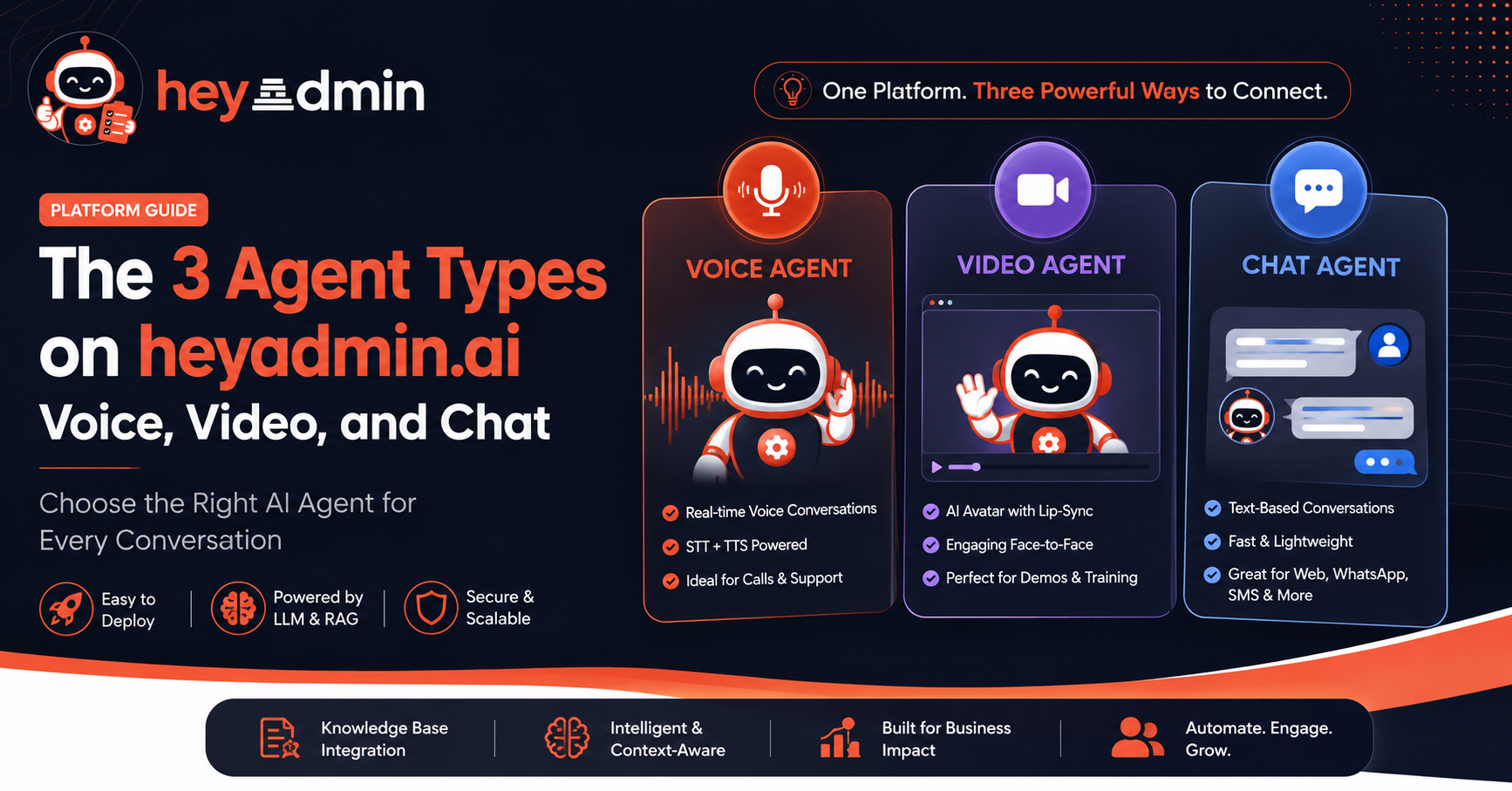
Introduction
When you create your first AI agent on heyadmin.ai, the first decision you'll make is: Which agent type do I need?
Voice? Video? Chat?
Each has distinct strengths. This guide walks you through all three, explains how they work under the hood, and helps you pick the right one for your use case.
Quick Comparison: The 3 Agent Types
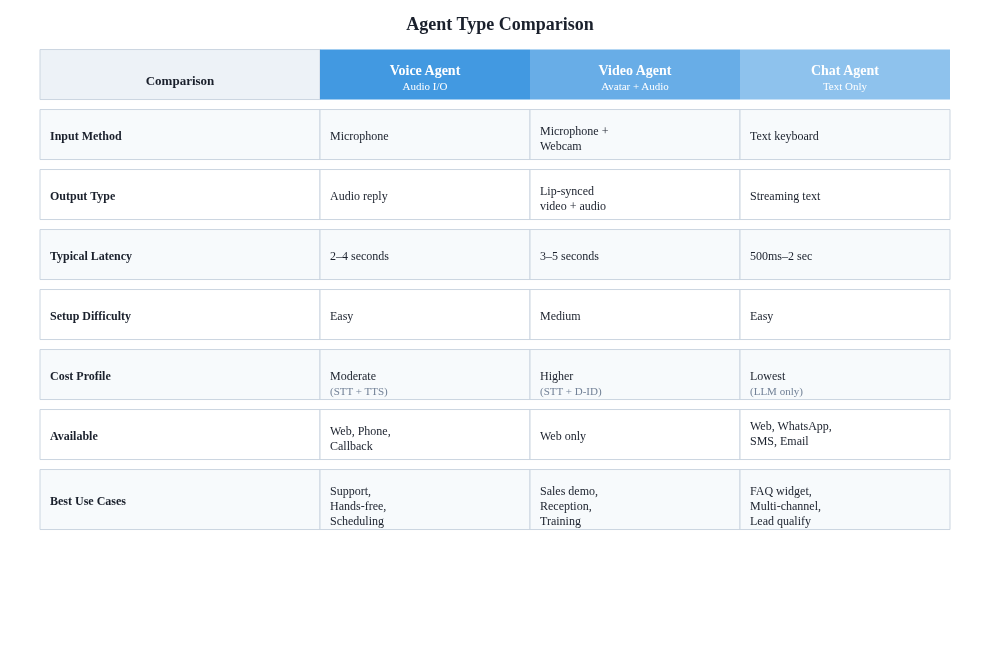
Feature | Voice | Video | Chat |
|---|---|---|---|
Input Method | Microphone (audio) | Microphone + webcam | Text keyboard |
Output | AI voice reply (audio) | Lip-synced avatar (video + audio) | Streaming text |
Protocol | WebSocket + audio codec | WebSocket + video codec (D-ID WebRTC) | WebSocket (text-only) |
STT (Speech-to-Text) | ✅ Real-time Whisper/Saarika v2 | ✅ Real-time Whisper/Saarika v2 | ❌ Skipped (text input) |
TTS (Text-to-Speech) | ✅ OpenAI/ElevenLabs/Sarvam | ✅ D-ID handles (if D-ID configured) | ❌ Skipped (text output) |
Best For | Phone support, hands-free operations | Sales demos, customer reception, training | Web chat, WhatsApp, SMS, email |
Setup Complexity | Low (microphone + browser) | Medium (D-ID credentials required) | Low (no extra hardware) |
Typical Latency | 2–4 seconds end-to-end | 3–5 seconds (D-ID processing) | 1–2 seconds (streaming) |
Cost Profile | Moderate (STT + TTS) | Higher (STT + D-ID avatar + video bandwidth) | Lowest (text-only, single LLM call) |
Agent Type 1: Voice Agents
What Is a Voice Agent?
A Voice agent listens to audio input from a microphone, processes it through your configured workflow, and replies with spoken audio.
Real-world scenario: A customer calls your support line. Instead of waiting for a human, they connect to your Voice agent. The agent understands their issue, retrieves the answer from your knowledge base, and explains the solution aloud.
How It Works: The Voice Pipeline
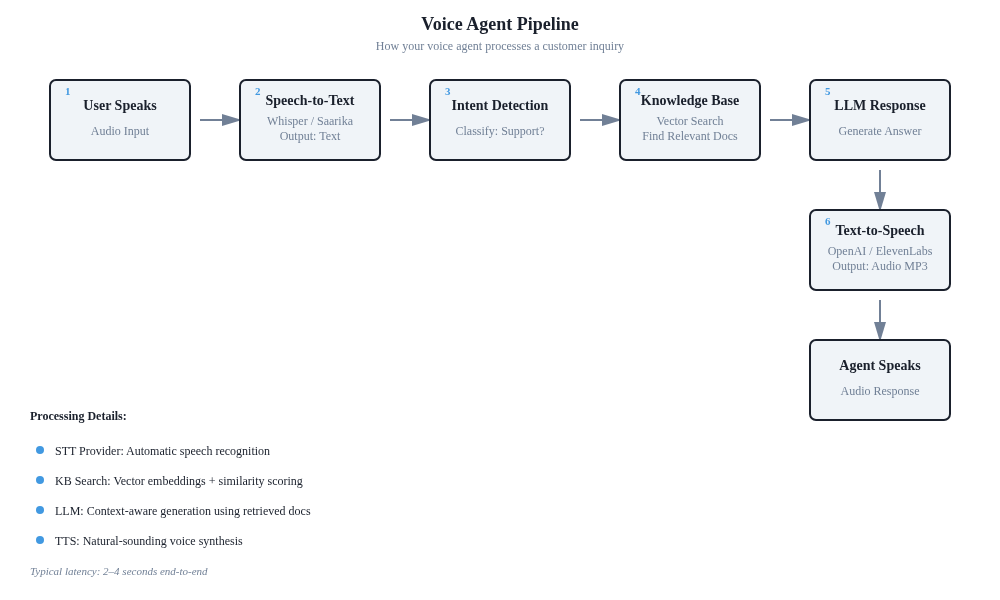
The workflow has 6 key steps:
User Speaks — Audio captured from microphone
Speech-to-Text (STT) — Whisper or Saarika v2 converts audio to text
Intent Detection — LLM classifies what the user is asking
Knowledge Retrieval — Vector search finds relevant docs from your knowledge base
LLM Response Generation — Generates conversational reply using retrieved context
Text-to-Speech (TTS) — OpenAI, ElevenLabs, or Sarvam converts text to audio
Agent Speaks — Audio plays back to user in real-time
Latency: 2–4 seconds end-to-end (STT + retrieval + synthesis all add time)
Voice Agent Settings You Control
When you create a Voice agent, you'll configure:
Setting | Example | Why It Matters |
|---|---|---|
System Prompt | "You are Priya, a support agent for Acme Corp. Be friendly but professional." | Defines the agent's personality and role |
Knowledge Base | Upload your FAQ, product docs, troubleshooting guides | Powers the "what to answer" |
Scope Topics |
| Defines what the agent CAN discuss |
STT Provider | Whisper (default) or Saarika v2 (Hindi/Tamil/etc.) | Affects accuracy for accented speech |
TTS Provider | OpenAI (default), ElevenLabs, Sarvam | Changes voice quality and naturalness |
TTS Voice ID | (if ElevenLabs) "Rachel", "Chris", etc. | Specific voice personality |
Language |
| BCP-47 language tag |
Where Voice Agents Shine
✅ Phone support lines — Replace IVR systems with natural conversations
✅ Hands-free operations — Warehouse staff, fieldworkers with headsets
✅ Callback requests — Capture a phone number, call them back later
✅ Appointment scheduling — Book calls, reschedule, send reminders
✅ Multilingual support — Same agent handles English, Hindi, Spanish
Voice Agent Deployment Channels
Channel 1: Web Browser
User visits your website → Clicks "Call our AI agent" button
→ Browser opens WebSocket connection: ws://api.heyadmin.ai/ws/voice/:agentId
→ Microphone + speaker activated → Conversation starts
Channel 2: Phone (Twilio Inbound)
Customer dials your business phone number
→ Twilio receives the call → Forwards audio to: ws://api.heyadmin.ai/ws/twilio/:callId
→ Agent processes the call → Replies with audio
→ Call logged in Sessions tab
Channel 3: Callback Request
In a chat or voice session, user says: "Call me back tomorrow at 2pm"
→ Agent detects intent: callback_request
→ Schedules an outbound call via Twilio at specified time
→ Agent calls the customer → Conversation resumes
Agent Type 2: Video Agents (With D-ID Avatar)
What Is a Video Agent?
A Video agent combines a real-time AI avatar (powered by D-ID) with the full voice agent pipeline. Instead of hearing a voice, the user sees a lip-synced virtual person speaking.
Real-world scenario: A prospect visits your sales website and clicks "Chat with our AI". A professional-looking avatar appears and welcomes them. The avatar listens to their questions, retrieves competitive pricing info from your knowledge base, and responds with lip-synced speech. The prospect feels like they're talking to a real person.
How It Works: Video Agent Architecture
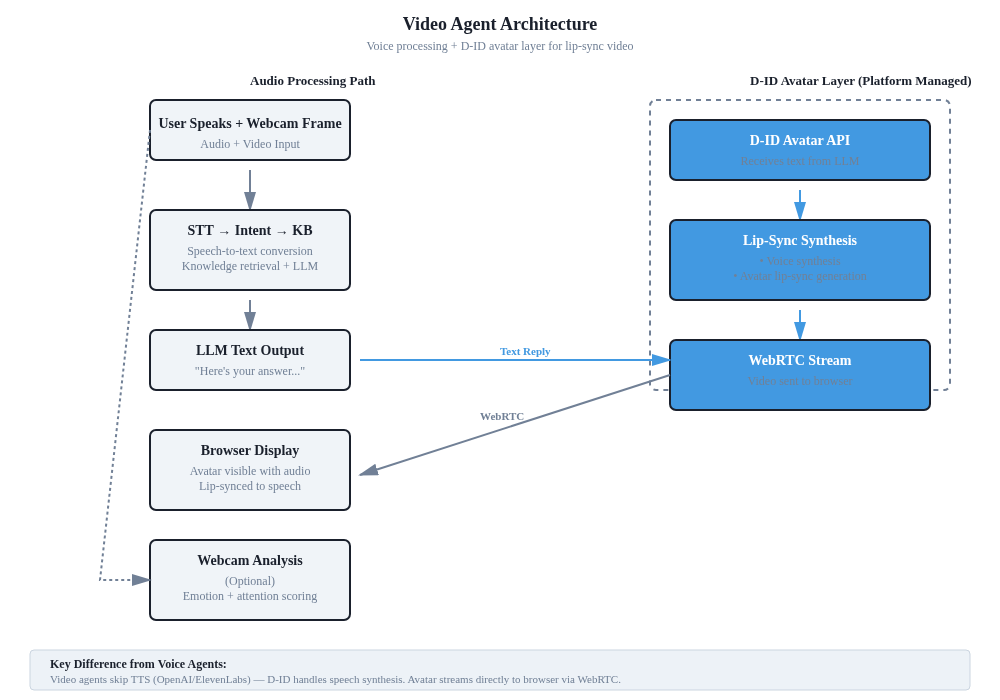
Unlike Voice agents (which just output audio), Video agents layer a visual avatar on top:
Audio Processing Path:
User speaks → STT → Intent detection → Knowledge base search → LLM generates text reply
D-ID Avatar Layer (Platform Managed):
LLM text reply → D-ID API receives text → Lip-sync synthesis → Avatar speaks with lip-sync
WebRTC stream sent directly to browser → User sees animated avatar
Key difference: Video agents skip TTS (OpenAI/ElevenLabs). Instead, D-ID handles all speech synthesis, so the avatar's lips sync perfectly with the words.
The D-ID Architecture
Important: D-ID is fully managed by heyadmin.ai. Here's what that means:
What the Platform Controls | What You Don't Control |
|---|---|
D-ID API Key | Which avatar appears |
D-ID Agent ID | Avatar voice/language (global setting) |
D-ID WebRTC Stream | Avatar customization per agent |
Avatar idle-loop video | D-ID API billing |
Why? One D-ID account funds all customers. The avatar and voice are consistent across your entire platform for brand unity.
What You DO Control:
✅ Agent's system prompt (what the avatar says)
✅ Knowledge base (what it answers from)
✅ Language tag (en, hi, es, etc.)
✅ Scope topics (what it can discuss)
✅ Webcam analysis (toggle to see user emotion/attention in real-time)
Video Agent Workflow
User speaks + webcam frame captured → Audio processing (STT → Intent → KB → LLM) → Text reply generated → D-ID Avatar API processes text → Lip-sync synthesis begins → WebRTC stream sent to browser → Avatar visible with audio → (Optional) Webcam analysis shows emotion/attention scores
Setting Up a Video Agent
Step 1: Create an agent and select Type: Video
Step 2: Configure like any other agent:
System prompt
Knowledge base
Scope topics
Language
Step 3 (Optional): Enable Webcam Frame Analysis
Toggle:
videoAnalysis: trueYou'll see real-time emotion/attention scoring in
/dashboard/sessionsUseful for: sales demo engagement tracking, training feedback
Video Agent Use Cases
✅ Sales & demos — Avatar explains product, answers objections, schedules demo
✅ Customer reception — 24/7 virtual receptionist greets visitors
✅ Onboarding training — Avatar walks new users through your platform
✅ Multilingual sales — Same avatar, different language prompts
✅ Recruitment interviews — Automated initial screening with visual presence
✅ User engagement tracking — Monitor caller attention/emotion in real-time
Agent Type 3: Chat Agents
What Is a Chat Agent?
A Chat agent is text-only — no microphone, no audio, no video. Users type questions and receive streaming text replies.
Think of it as your Voice agent's text sibling: same knowledge base, same LLM logic, zero audio processing.
Real-world scenario: A customer opens your website and types "Do you offer refunds?" into your chat widget. The Chat agent instantly retrieves your refund policy from its knowledge base and types back: "Yes, we offer 30-day refunds for all products..."
How It Works: The Chat Pipeline
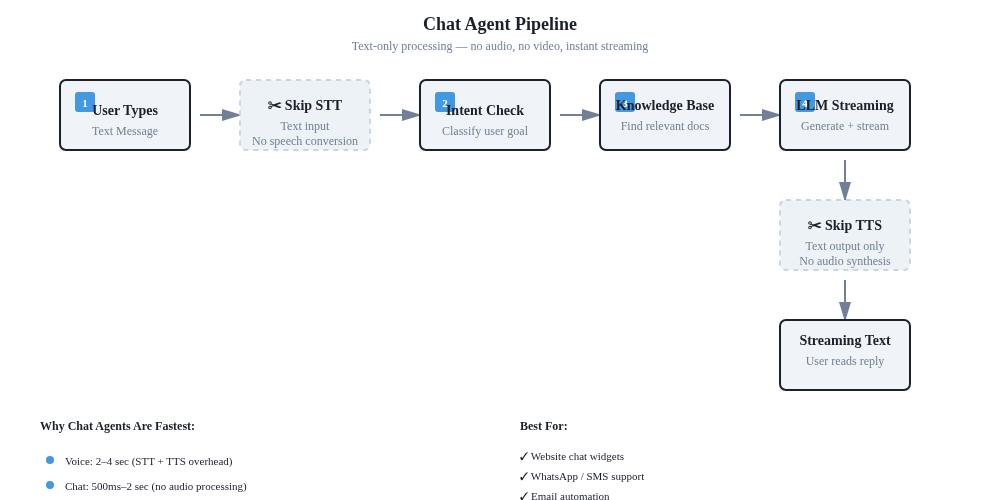
Chat agents skip the audio steps entirely:
User types message (text input)
✂️ Skip STT — text is already captured
Intent detection (classify user goal)
Knowledge base search (find relevant docs)
LLM streaming (generate response word-by-word)
✂️ Skip TTS — output is text, not audio
Streaming text displayed to user
Why Chat Agents Are Fastest: No speech processing overhead = 500ms–2 second responses vs. Voice's 2–4 seconds.
Chat Agent Features
1. Text Streaming
User sees the agent's response appear in real-time, word-by-word (like ChatGPT). Feels fast and responsive.
2. Multi-Turn Conversation
Session memory automatically maintained
Follow-up questions understood in context
Example:
User: "What's your refund policy?"
Agent: "30 days, full refund."
User: "Can I return opened items?"
Agent: "Yes, but items must be in resalable condition."
3. Sources & Follow-Ups (if enabled)
After each reply, show:
Sources: "This answer came from: FAQ #12, Returns Policy v2" (with links)
Follow-ups: Suggested next questions (powered by LLM)
4. Session Logging
Every chat is logged in /dashboard/sessions with:
Full transcript
Retrieved knowledge base chunks
User thumbs-up/thumbs-down feedback
Integration data (if connected to CRM/support)
Chat Agent Channels
Channel 1: Web Chat Widget
<script>embed heyadmin.ai chat widget</script>
→ Small chat bubble in bottom-right corner
→ User clicks → Opens chat window
→ Conversation starts
→ Transcript saved in Sessions
Channel 2: WhatsApp (MCP Adapter)
User sends WhatsApp message to your business number
→ Webhook received: POST /api/webhooks/whatsapp
→ Agent processes message
→ Reply sent back via WhatsApp
→ Conversation logged per phone number
Channel 3: SMS (Twilio)
User texts: "Store hours?"
→ Twilio webhook → Agent processes
→ Reply texted back: "Open 9am–6pm, Mon–Fri"
→ SMS logged in Sessions
Channel 4: Email (via MCP)
Customer emails support@yourcompany.com
→ Email webhook received
→ Agent generates reply email
→ Sent to customer email
→ Logged in Sessions + CRM
Chat Agent Use Cases
✅ Website chat widget — 24/7 instant answers to common questions
✅ WhatsApp support — Customers reach you on their preferred app
✅ SMS support — Quick replies via text for customers without data
✅ Email automation — Inbound emails auto-replied within seconds
✅ Knowledge base search — Customers ask naturally instead of browsing docs
✅ Lead qualification — Chat collects info, routes to sales team
✅ Multiple languages — Text auto-detection, single agent per language
Comparison Matrix: When to Use Which
Scenario | Recommended | Why |
|---|---|---|
Customer support helpline | Voice | Customers call; fast troubleshooting over audio |
Sales demo website | Video | Visual presence + voice builds trust |
Website FAQ bot | Chat | Text-based, always available, lowest cost |
Warehouse operations | Voice | Hands-free audio, staff use headsets |
Recruitment screening | Video | Avatar interviewer; record candidate responses |
Multilingual chat | Chat | Route by language; no audio synthesis cost |
Appointment booking | Voice | Natural conversation; easier to speak dates/times |
Training onboarding | Video | Avatar walks through tutorial; engaging visual |
Bulk support (1000s/day) | Chat | Scales cheapest; no TTS per request |
Decision Tree: Pick Your Agent Type
Quick logic:
How will users interact?
They CALL → Voice Agent
They VISIT your WEBSITE → Ask: "Do you want a visual avatar?"
Yes → Video Agent
No → Chat Agent
They MESSAGE you (WhatsApp/SMS/Email) → Chat Agent
Shared Intelligence: All Three Types Use the Same Core
While the three agent types have different interfaces, they share identical core intelligence:
┌─────────────────────────────────────────┐
│       SHARED AGENT INTELLIGENCE         │
├─────────────────────────────────────────┤
│  • System Prompt (your brand voice)     │
│  • Knowledge Base (your truth source)   │
│  • Scope Topics (what to answer)        │
│  • Cost Limits (spend guard)            │
│  • Session Memory (context window)      │
│  • Feedback Loop (👍/👎 training)      │
└─────────────────────────────────────────┘
           │
    ┌──────┼──────┐
    ▼      ▼      ▼
 [Voice] [Video] [Chat]
This means:
✅ Same knowledge base powers all channels
✅ System prompt consistency across Voice/Video/Chat
✅ Feedback on chat improves voice agent quality (and vice versa)
✅ Multi-channel agents use identical backend logic
Getting Started: Decision Tree
[See diagram: Agent Type Decision Tree in detail above]
Setup Paths: Start Here
Path 1: Create Your First Voice Agent
Navigate to
/dashboard/agents/newSelect Type: Voice
Name your agent (e.g., "Support Bot")
Write a system prompt
Upload knowledge base documents
Click Create
Go to Share tab → copy WebSocket embed code
Embed on your website or share the link
Test with microphone + speakers
Enable feedback (👍/👎)
Path 2: Add a Video Agent
Prerequisites: Same as Voice (system prompt + knowledge base ready)
Navigate to
/dashboard/agents/newSelect Type: Video
Video agent inherits D-ID avatar (no config needed)
Configure Language and Scope Topics
(Optional) Enable Webcam Frame Analysis for engagement tracking
Create agent
Deploy to website via Share tab
Path 3: Deploy Chat to Website
Create agent (Voice, Video, or dedicated Chat agent)
Go to
/dashboard/agents/:agentId/shareUnder Chat Widget, copy the embed code
Paste into your website
<head>or before closing</body>Chat widget appears in bottom-right corner
Customize colors/branding in widget settings
Test in browser
Monitoring & Optimization
All Three Types: Sessions Dashboard
After your agent goes live, visit /dashboard/sessions to see:
Metric | Shown For |
|---|---|
Transcript | All types |
Latency | Voice (STT time) + Video (D-ID processing) |
User Feedback | All types (👍/👎 thumbs icons) |
Sources | All types (which KB chunks were used) |
Webcam Analysis | Video only (emotion/attention scores) |
Errors | All types (out-of-scope rejections, KB gaps) |
Cost Tracking
Visit /dashboard/admin → Cost to see:
Voice: $0.02 per minute (STT + LLM + TTS)
Video: $0.05 per minute (STT + LLM + D-ID avatar)
Chat:  $0.003 per message (LLM only)
Cost limit can be set per month to prevent runaway bills.
Common Questions
Q: Can I switch an agent's type after creation? A: No, agent type is set at creation. If you need to change, create a new agent with the same knowledge base and system prompt, then redirect traffic.
Q: Can one agent be deployed to Voice + Chat + WhatsApp? A: Yes! Create one agent, then deploy via:
Voice: Share tab → WebSocket embed
Chat: Share tab → Chat widget embed
WhatsApp:
/api/webhooks/whatsappwebhook (requires phone number setup)
Q: Why does D-ID avatar look the same for all my agents? A: D-ID is platform-managed for consistency. One avatar, one voice, all agents. Your system prompt and knowledge base make each agent unique—not the visual appearance.
Q: Can I use a custom avatar or voice? A: Custom avatars and voices are platform-level features (SUPER_ADMIN only). Contact heyadmin.ai support for custom branding.
Q: Which agent type is cheapest? A: Chat agents. No STT/TTS = lowest API costs. Voice and Video have audio processing overhead.
Q: Do I need to upload knowledge base docs for the agent to work? A: No, but recommended. Without a knowledge base, agents rely only on their system prompt and the LLM's training data. Knowledge base makes answers specific to your business.
Next Steps
✅ Pick your agent type based on your use case (see Decision Tree above)
✅ Create your first agent at
/dashboard/agents/new✅ Upload knowledge base docs that your agent will reference
✅ Write system prompt that defines your agent's personality
✅ Deploy to one channel (web, WhatsApp, or phone)
✅ Monitor sessions in
/dashboard/sessions✅ Collect feedback (👍/👎) to improve agent quality
Summary
Agent Type | Best For | Time to Set Up | Complexity |
|---|---|---|---|
Voice | Phone support, hands-free ops | 10 minutes | Low |
Video | Sales demos, visual engagement | 15 minutes | Medium |
Chat | Website widget, WhatsApp, SMS | 5 minutes | Low |
All share the same knowledge base, system prompt, and LLM intelligence. The choice is about channel and user interaction style, not about capability.
Start with the agent type that matches your primary channel, then add others later as needed.